Field Services Dispatch Board
A dispatcher's guide to reading the board, scheduling resources, and publishing changes back to Acumatica.
What this is
The Dispatch Board is a live view of your field appointments, read directly from Acumatica. You use it to see who is scheduled where and when, to reassign, re-time, or re-day jobs by dragging or with a quick dialog, and to publish those changes back to Acumatica once you're happy with them.
Everything you do stays a plan that only you and other dispatchers see — nothing reaches Acumatica until you press Publish. Acumatica always remains the source of truth: if a job changes on the Acumatica side, the board updates and your plan for that job steps aside.
Signing in
Open the board and click Sign in with Acumatica. You'll sign in with your normal Acumatica account in a popup; the board opens once you're authenticated. You land in the Production company by default.
What you can see and change is governed by your Acumatica permissions — you only see the branches your account is granted, and a change publishes as you, using your own Acumatica access.
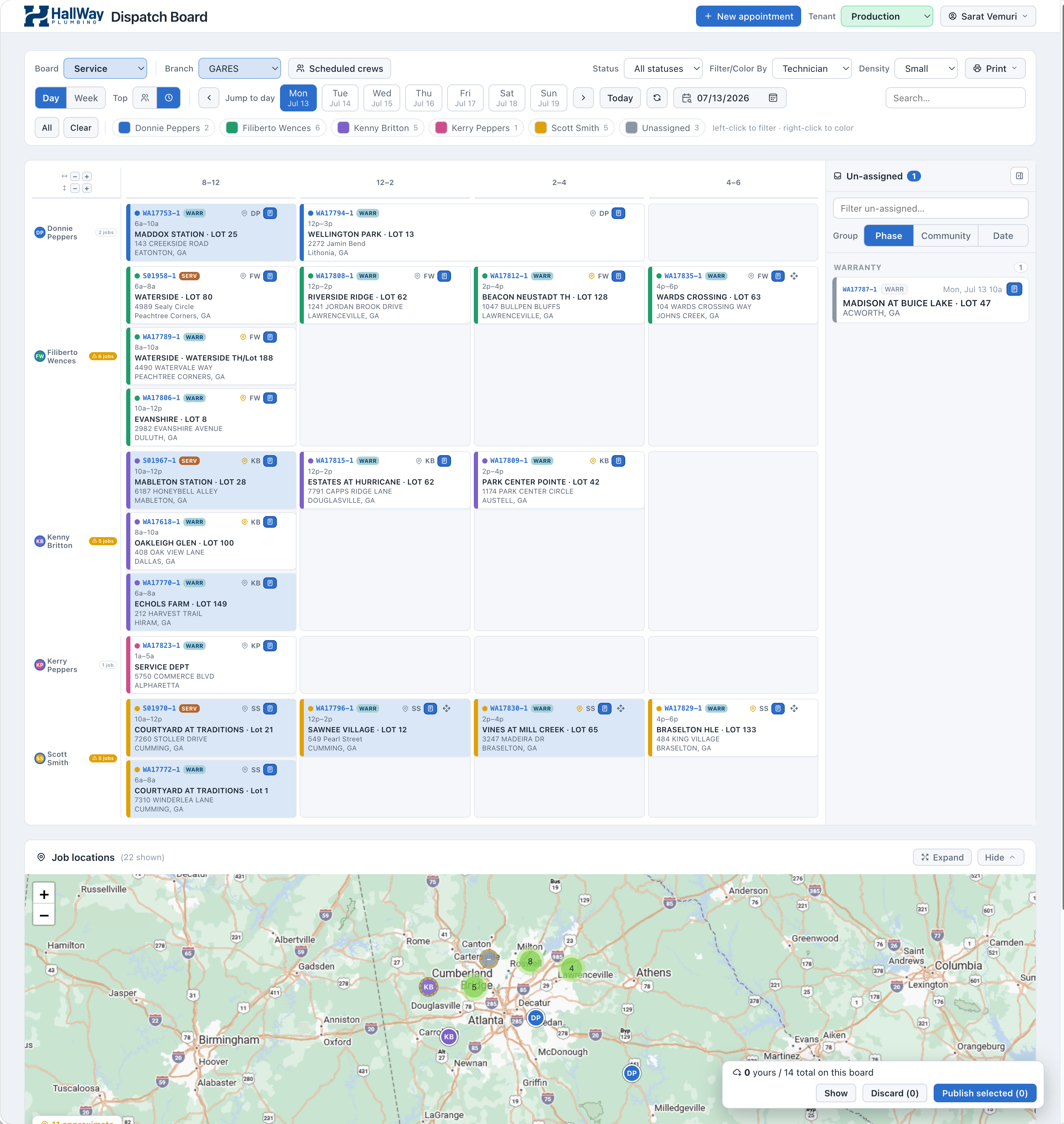
The board at a glance
From the top down:
- Top bar — the New appointment button, the Tenant (company) switcher, and your name (the profile menu).
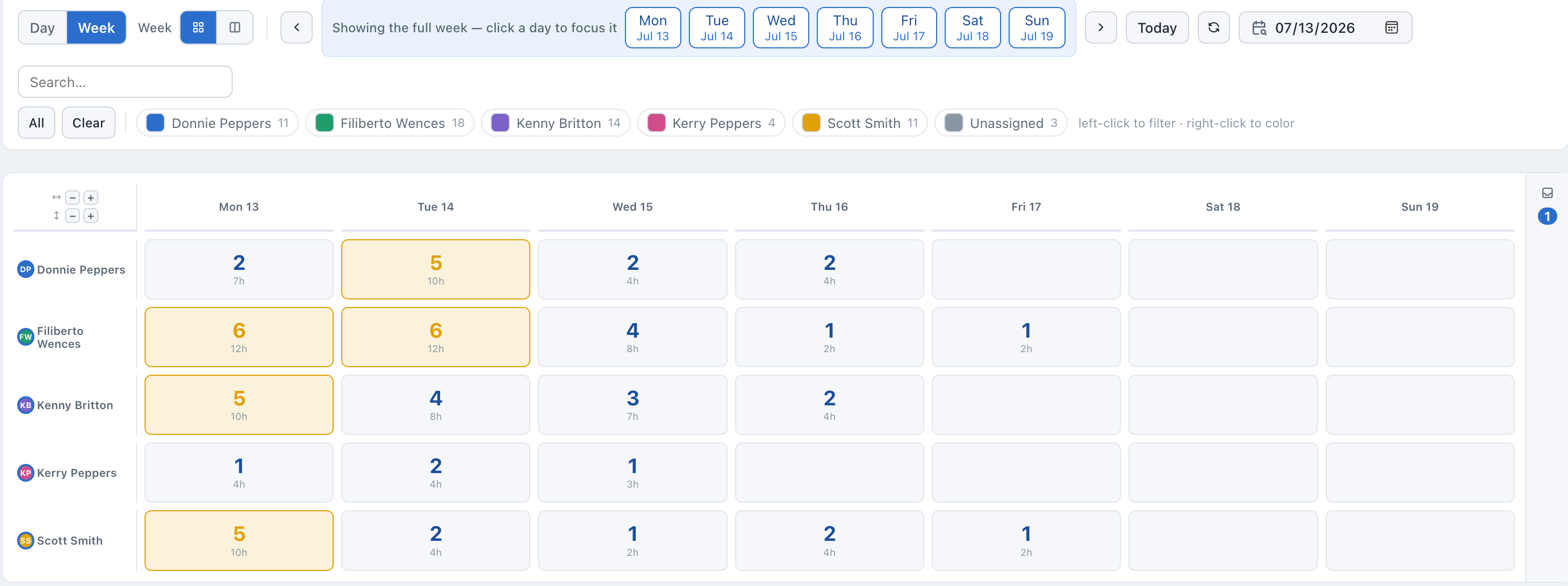
- Control bar — Board (Service / Installs / Work orders / BTC — pick one or several), Branch, Scheduled resources / All resources, a Status filter, Filter / Colour By, tile Density, and Print.
- Date & view row — Day / Week, the orientation toggle, the day picker, Today, the refresh button, and jump to a date.
- Legend — one chip per resource (or per status/type/branch, depending on Colour By) with a count.
- The grid — a lane per resource down the side, time windows across the top (Day view) or days across the top (Week view). Appointment tiles sit in the cells.
- Un-assigned rail — jobs with no resource yet, on the right.
- Publish bar — floats at the bottom-right whenever there are unpublished moves.
- Job locations map and Change history — below the grid.
Choosing what you see
- Board
- Chooses which boards are shown — Service, Installs, Work orders, BTC. You can tick more than one to see them side by side on the same grid; each tile then carries a type chip so you can tell them apart. With two or more ticked, a pin appears next to each: the pinned board decides the time slots, the colours and the capacity limits. Ticking an extra board never moves the pin, so your layout stays put. The last board can't be unticked.
- Branch
- Scopes the board to one branch, or All branches if you have more than one.
- Tenant
- Switches company (e.g. Production). Switching a tenant you haven't used before asks you to connect it once.
- Day / Week
- Day shows time windows across the top; Week shows the seven days.
- Scheduled resources / All resources
- Show only resources with jobs in view, or every field resource (so idle resources are still assignable).
- Status
- Filter to Not Started, In Process, Completed, Closed, or all.
- Filter / Colour By
- Colours tiles (and the legend) by Resource, Status, Order type, Branch, or Work phase.
- Search
- Free-text match on customer, address, community, appointment number, and more.
- Density
- Small → X-large tile sizing. The − + controls beside the grid fine-tune column width and row height for the current board.
Reading a tile
Each tile is one appointment. On it you'll see the appointment number (click it to open the appointment in Acumatica), the scheduled time, the community · lot and address, the assigned resource's initials, and a notes button. Chips next to the appointment number show the order type and branch — but only when they add information (the type chip appears only on boards that mix types; the branch chip only when you're viewing all branches).
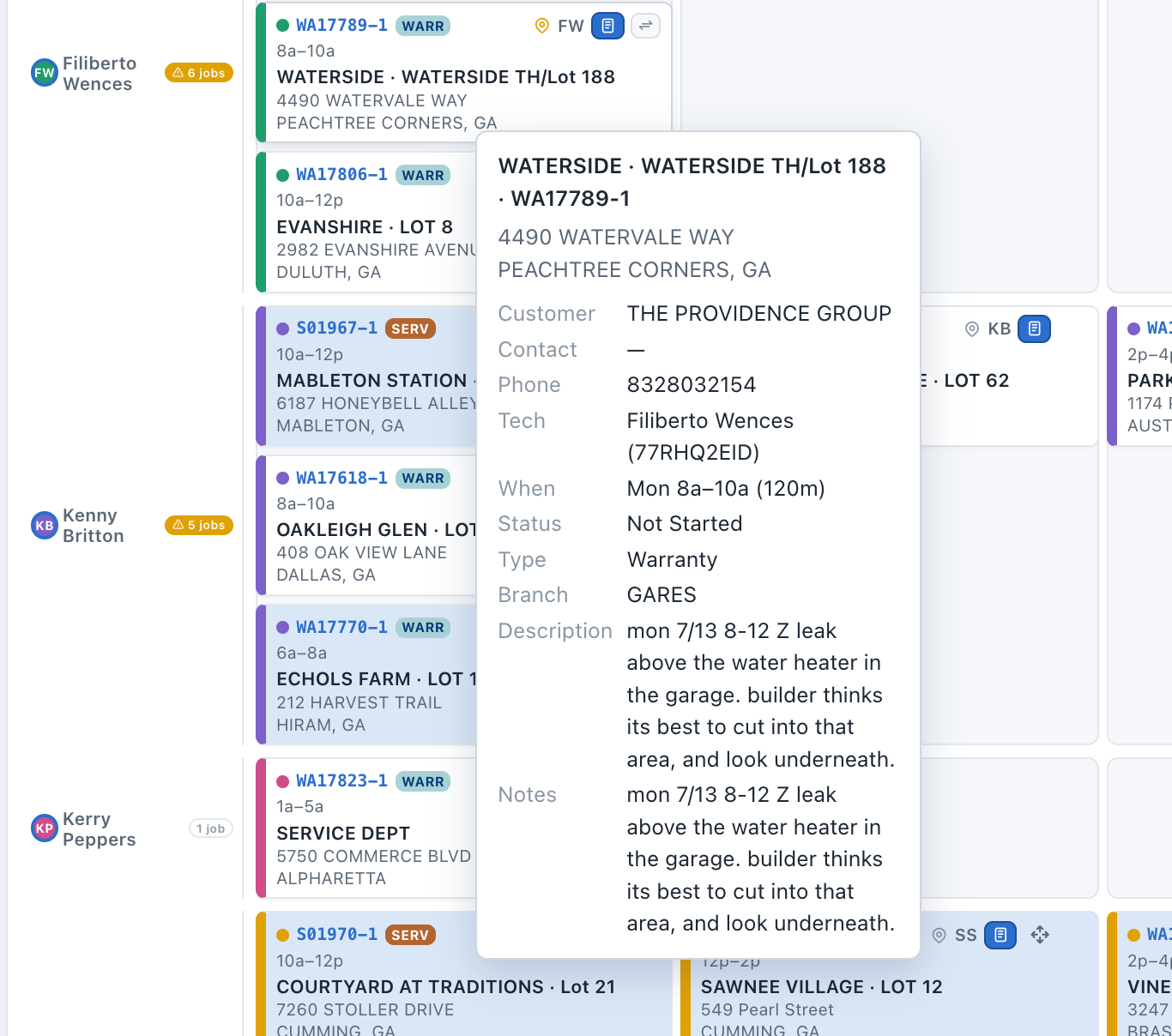
Hover any tile to see the full detail card — customer, contact, phone, resource, exact window, status, type, branch, description, and notes.
What the colours mean
- Coloured bar
- The tile's colour follows your Colour By choice (by default, the resource).
- Striped
- Un-assigned (no resource yet), in Resource colour mode.
- Light blue
- The appointment is completed / closed in the field. Completed jobs don't count toward capacity.
- Red frame
- Over capacity — this window has more jobs than the Max/slot you set.
A small marker on a tile means it has an unpublished move; a multi-day job spans the days or windows it covers.
Filtering & colour
The legend chips are interactive:
- Left-click a chip to hide/show that group (e.g. focus one resource). All / Clear reset the filter.
- Right-click a chip to recolour that group.
Legend counts and the Un-assigned count reflect what's actually in view on the selected day (a multi-day job counts on every day it covers).
Moving & assigning jobs
There are three ways to move a job to a different resource, time, or day:
- Drag & drop — drag a tile onto another resource's lane / time cell.
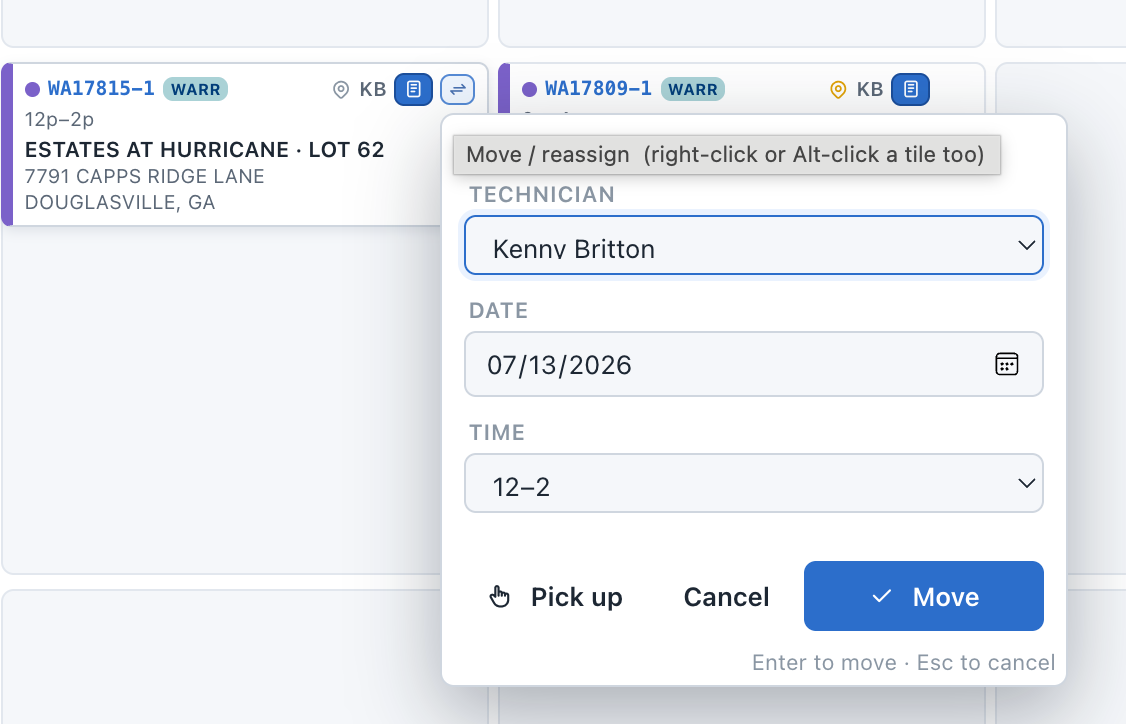
- Move dialog — right-click a tile (or use its hover button) to set resource, date, and time in one step, then Move.
- Pick up → place — Alt-click a tile (or press Pick up in the dialog), then click the target slot.
You can also add blocks (time a resource is unavailable) and notes to the board. If a block covers assigned jobs, those jobs are bumped to the Un-assigned rail.
The Un-assigned rail
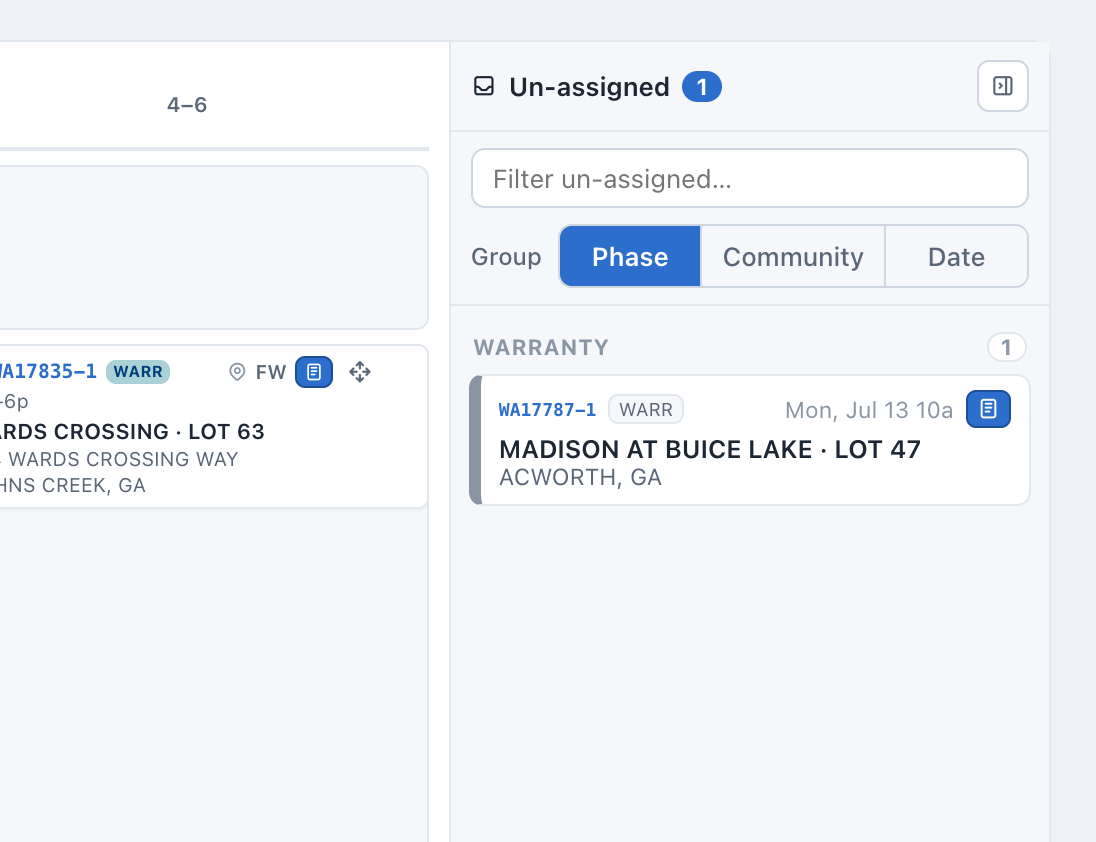
Jobs with no resource live in the collapsible rail on the right. Group them by Phase, Community, or Date, and filter with the search box. To schedule one, drag it onto a resource lane or use the Move dialog. Dropping a tile back onto the rail un-assigns it. Prefer it across the top? Set Un-assigned → Above board in your profile menu and it becomes a full-width band above the grid (same grouping, same drag targets).
Publishing to Acumatica
Whenever you have unpublished moves, the Publish bar appears at the bottom-right. It shows how many moves are yours vs the total on this board, plus any you've made elsewhere (another board or branch).
Click Show to expand the list. Each row identifies the move — appointment number, target date/time, community · lot, and who moved it. Hover a loaded row for the full tile detail; click a row to jump to it.
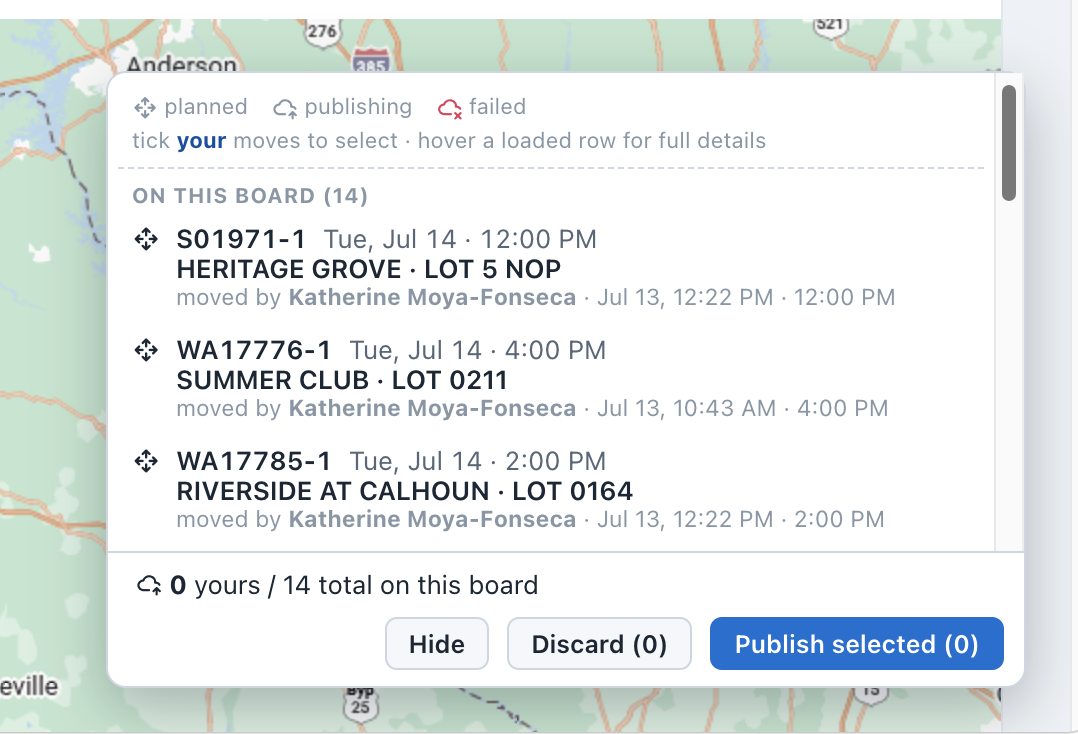
- Publish selected writes the ticked moves to Acumatica as you. After a moment the board refreshes and the published plans clear.
- Discard selected reverts those tiles to where Acumatica has them. Nothing is written.
- You can only publish/discard your own moves; other dispatchers' moves show who made them but aren't yours to resolve.
Change history
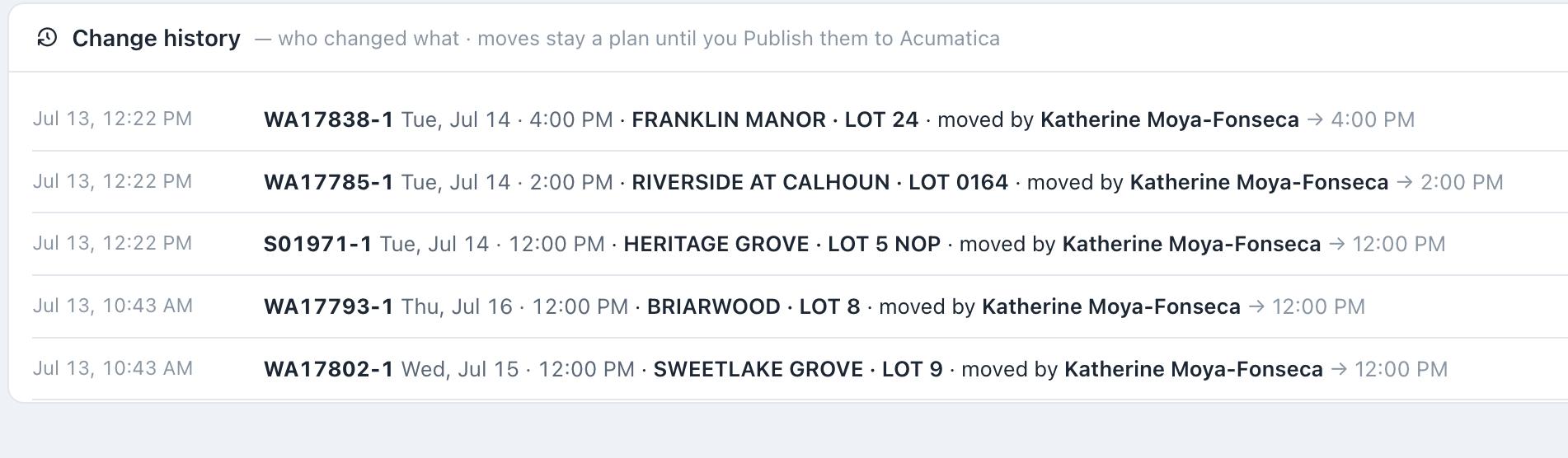
Below the grid, Change history lists every pending change on the board — moves, blocks, and notes — with who did what and when. Because it reads the shared board, you'll see other dispatchers' pending moves here too, matching the Publish bar. Entries clear as moves are published or discarded.
New appointment
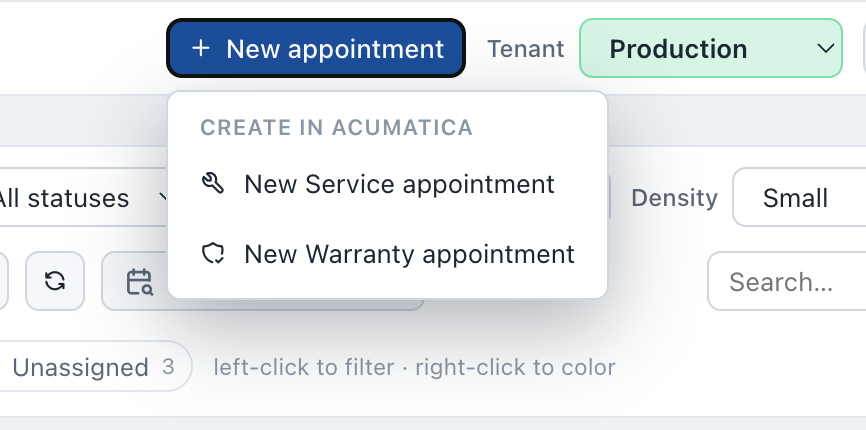
Use New appointment (top bar) and pick the order type — the choices come from the current board. It opens the matching new-appointment screen in Acumatica.
Your settings
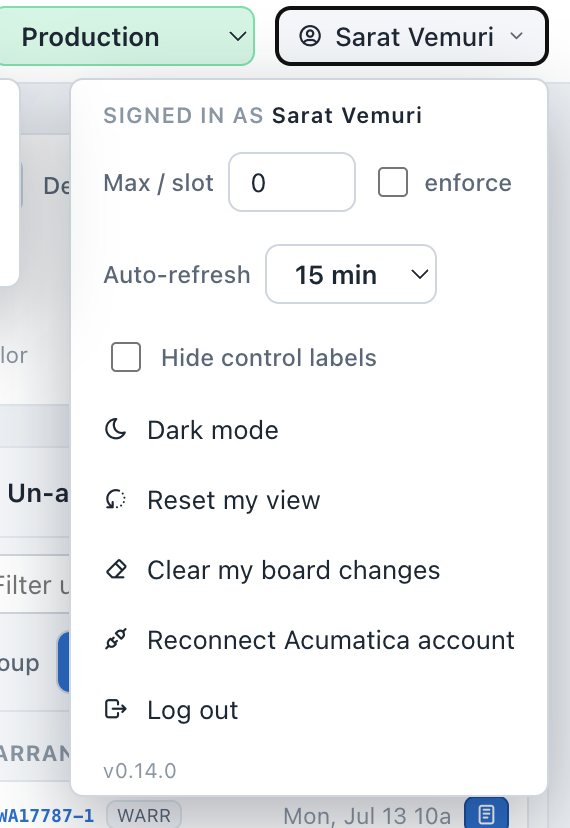
Open the menu under your name (top-right). These are personal — they don't affect other dispatchers:
- Max / slot & enforce
- Your per-window capacity, and whether to block overbooking drops.
- Auto-refresh
- How often the board pulls the latest status from Acumatica (Off → 60 min).
- Week starts
- Which day begins the week — the day strip, Week view, and the multi-week planner all follow it. Default Monday.
- Un-assigned
- Where the Un-assigned panel sits: a rail on the right of the board (default) or a band above it.
- Hide control labels
- Hides the toolbar labels for a denser bar (the menu's own labels stay visible).
- Theme
- Light / dark.
- Reset my view
- Returns your personal view (colours, filters, density, etc.) to defaults — shared board changes are untouched.
- Clear my board changes
- Removes the moves, blocks, and notes you made. Others' changes are untouched.
- Connect Acumatica
- Connects your account for publishing (shown when write-back is available).
Printing
Print (control bar) produces a per-resource day or week sheet. Multi-day jobs appear on every day they cover.
Tips & troubleshooting
| The board looks stale | Press the refresh button, or set an Auto-refresh interval in your profile menu. The board is always live — it doesn't auto-reload except on that interval or a manual refresh. |
| A branch shows no jobs | You may not have Acumatica access to that branch, or there are simply no appointments for the selected day/board. |
| My move won't publish | Make sure you've connected your Acumatica account (profile menu). A failed publish shows a red cloud badge on the tile with the reason. |
| A tile turned red | That resource's window is over your Max/slot capacity. It's a warning, not a block, unless you've turned on enforce. |
| A move disappeared | Acumatica changed that appointment, so the board dropped your plan — Acumatica always wins. |